
 Back
Building Your Journey Map
The Edit journey map page is where you lay out a journey: add the stages a customer moves through, add touchpoints to each, and arrange them. Changes are staged until you click Apply Changes, so you can rework the map freely and save it in one go.
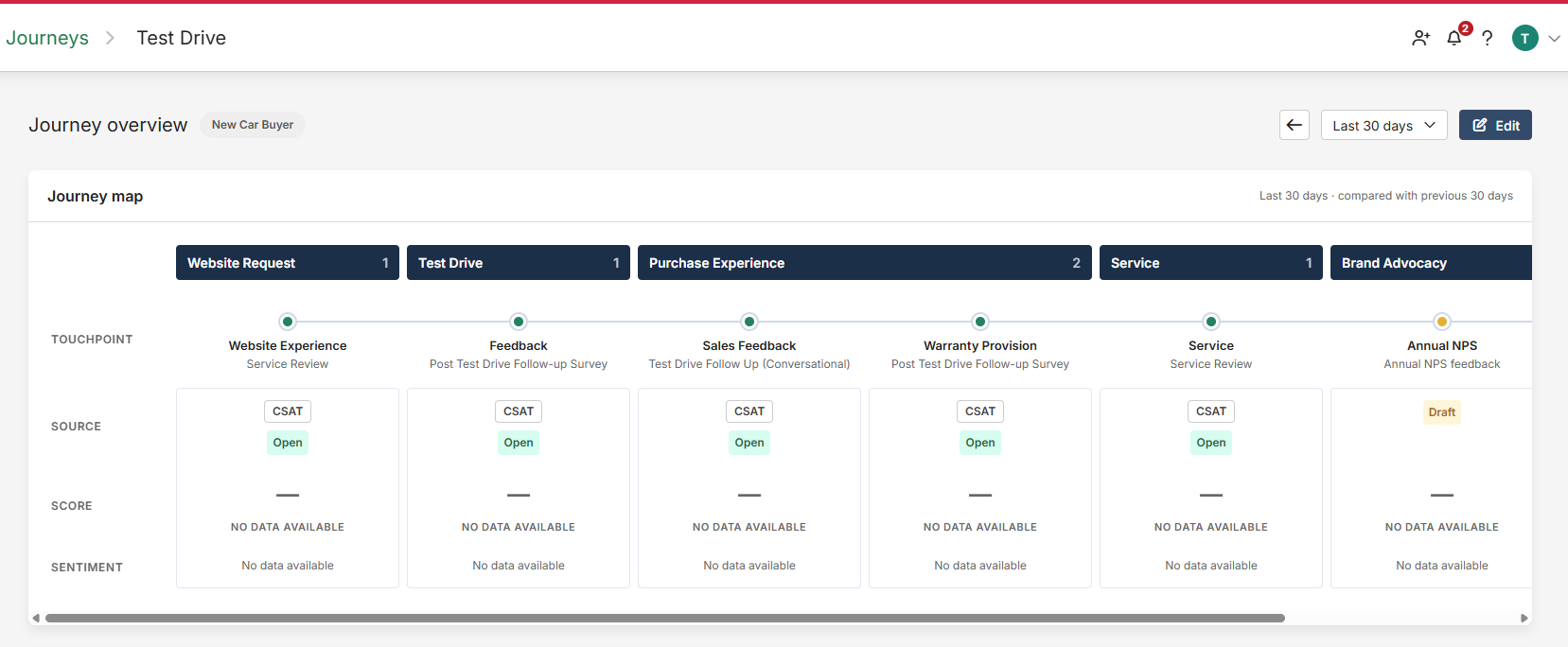
Open the editor
Click Journeys in the main navigation, click the journey's name, then click Edit in the top right. A brand-new journey opens here automatically. The page is marked Editing.
Stages and touchpoints
To add a stage, click Stage to the right of the last column (or Add your first stage on an empty journey), enter a Stage name and click Add stage. To add a touchpoint, click Touchpoint at the bottom of its stage, enter a Touchpoint name and click Add touchpoint.
Each stage header and touchpoint card has a menu with Rename, Remove and move options (Move stage left / right, Move up / Move down). You can also drag a stage header to reorder stages, and drag a card to reorder it or drop it into another stage. Removing a stage removes its touchpoints and their source links; you'll be asked to confirm. A journey can hold up to 50 stages and each stage up to 100 touchpoints, and names can't be blank.
Click a touchpoint card to open its detail panel, where you link a survey, choose questions, and move it between stages with the Stage dropdown. See Linking Feedback Sources to a Touchpoint.
Link a survey by dragging
The Feedback sources tray on the left lists every survey containing an NPS, CSAT or CES question. Drag one onto a touchpoint card to link it. If the card already has a survey you'll be asked to confirm Change survey, because switching clears the questions chosen for its score and sentiment. After dropping, open the card's panel and use Select questions to choose which questions to score with.
Apply or discard changes
Nothing is saved until you apply it. The header counts your staged edits — for example 3 unsaved changes — and offers Apply Changes, which saves everything in one go (if any edit can't be applied, nothing is saved and the message explains why), and Cancel, which asks you to confirm Discard changes and restores the board to its last applied state. Leaving the page with unapplied changes prompts you first.
Note — If a colleague changes the same journey while you're editing, applying shows Journey changed elsewhere. Click Reload latest to load their version; your unapplied changes are discarded.
Scores and sentiment refresh after you apply; a touchpoint with unapplied source changes shows a note in its panel until then.