
 Back
BackDashboard permissions and sharing
There are two separate ways to control who sees a dashboard: permissions for people inside your account, and public sharing for people outside it. This guide covers both, starting with your team.
Permissions: sharing with people in your account
You can give other users in your account access to a dashboard by updating its permissions.
A user with access to your dashboard can:
- View read only - they cannot add, edit or remove tiles from the dashboard. The user can utilize the date and filters
- View and edit the dashboard with the same settings as the dashboard owner
- Pin data from their own surveys onto the dashboard
Something to be aware of: because a user with Edit access can pin/add survey data that they have access to, to the dashboard, other users with access to that dashboard may end up viewing data from surveys they personally do not have permission to access. Consider this before granting broad dashboard access.

Sharing: making a dashboard public
To share a dashboard with people outside SmartSurvey, use a public link.
Select the three dots (...) in the top right of the dashboard page, then select Share.

Public link options
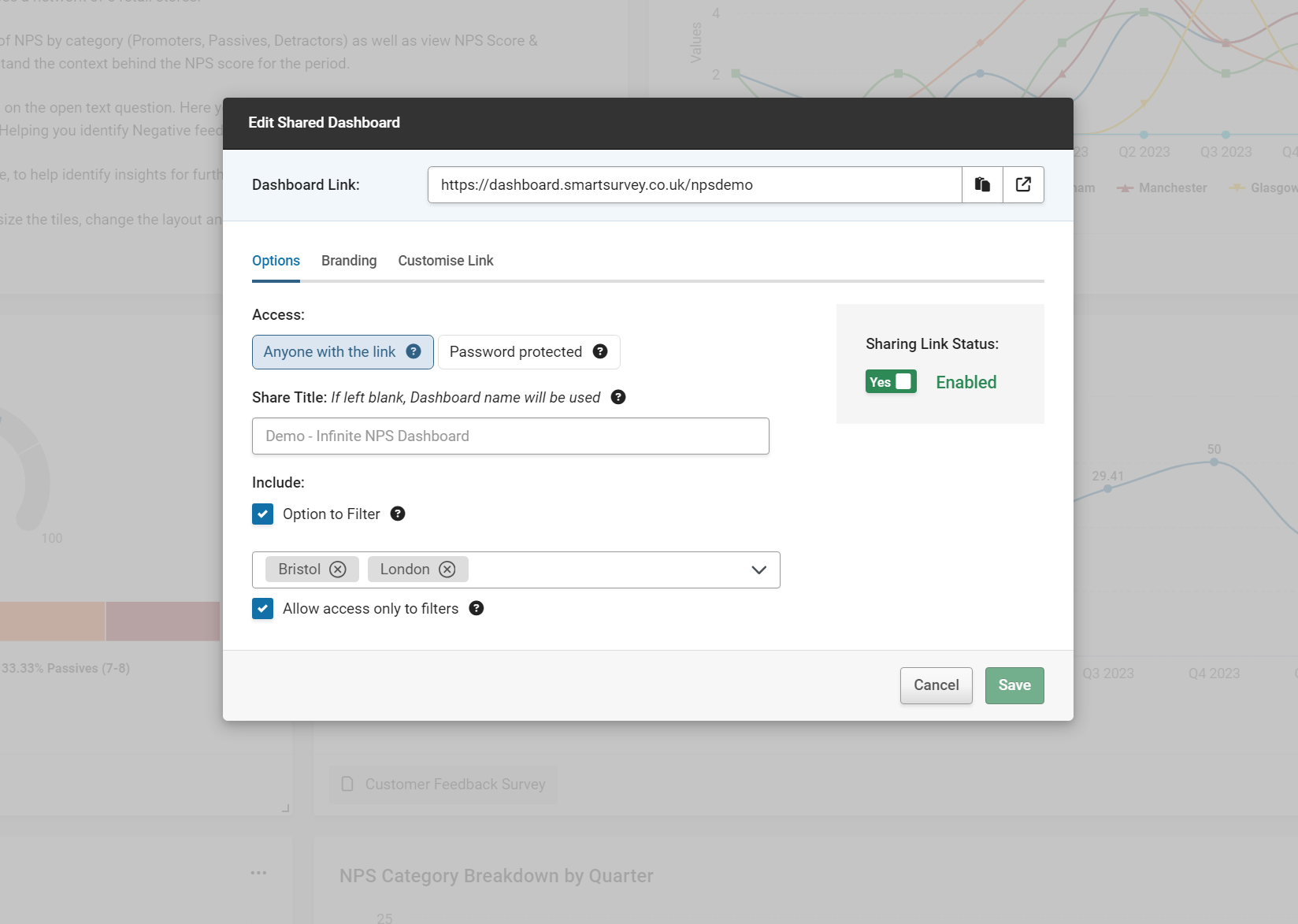
Once you've selected Share, you can configure:
- The title shown on your shared dashboard
- A password, which users must enter to gain access
- Whether the link is enabled, so you can turn public access on or off depending on who and when you want the dashboard visible
- Whether filters can be used by whoever's viewing the shared dashboard
- The page background color
- Your logo and the header color
- The link text
- A custom domain, if you have one configured
Quick reference
| Permissions | Public sharing | |
|---|---|---|
| Audience | People in your account | Anyone with the link |
| Can edit or view only the dashboard | Yes | No |
| Can pin their own survey data | Yes (if Edit access) | No |
| Password protection | Not applicable | Yes, optional |
| Branding controls | Not applicable | Yes |