
 Back
BackFiltering your dashboard
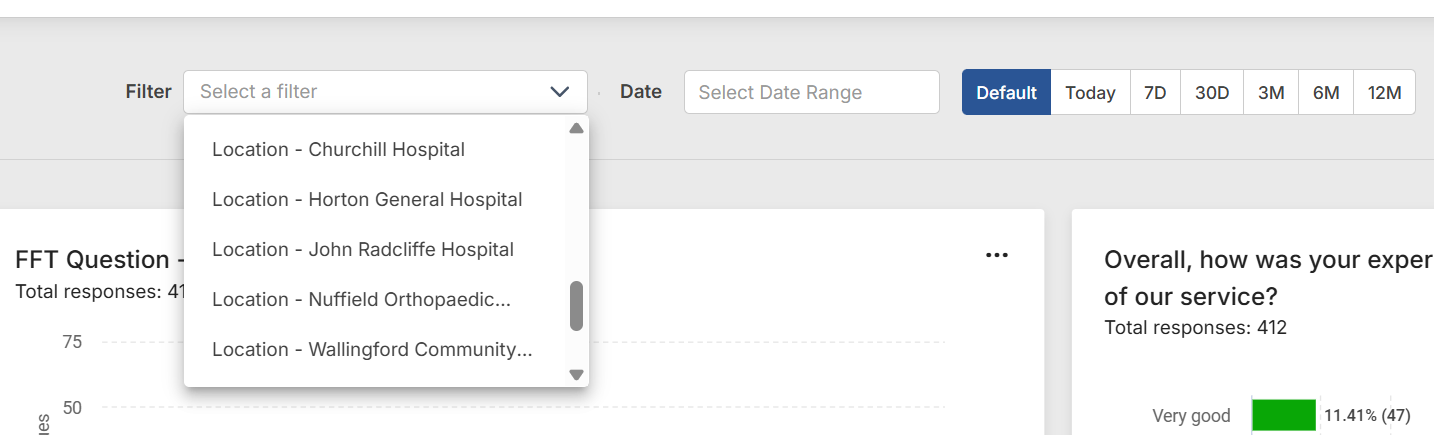
Filters let you narrow down the data shown on a dashboard, so you can focus on specific segments or compare them against each other. Dashboard filters originate from filters you've already built on a specific survey. For more on building filters themselves, see the guide on creating survey filters.
There are two ways to apply a filter: to the whole dashboard, or to an individual tile.
Filtering the whole dashboard
This option is only available if every tile on the dashboard comes from a single survey. It does not currently support dashboards containing tiles from multiple surveys.
When you choose an overall filter, every tile on the dashboard updates to reflect it.
Filtering individual tiles
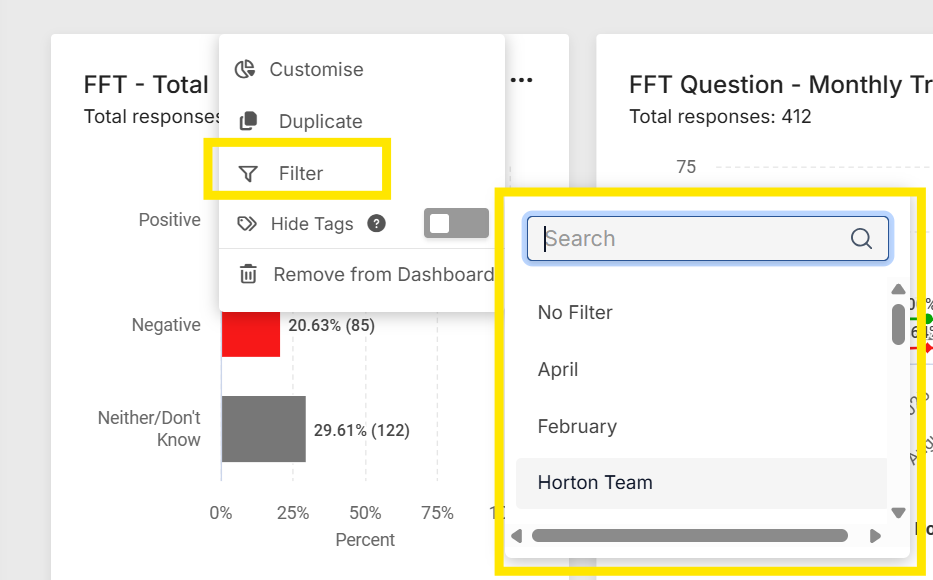
You can add a filter to a single tile without affecting the rest of the dashboard. This is useful for comparing segments side by side. For example, you could set one tile to show responses from one region and a second tile to show another, so you can compare the two at a glance.
Quick reference
| Filter type | Applies to | Works across multiple surveys |
|---|---|---|
| Overall dashboard filter | Every tile on the dashboard | No, single survey only |
| Tile-level filter | One tile | Yes, since each tile filters independently |