
 Back
BackImage Choice
The Image Choice question type makes it easy to create multiple-choice questions where respondents choose from a set of options illustrated by images.
The question can be configured to allow only a single selection or multiple selections, and supports alt text, headings, display logic and skip logic, as with other question types.
Creating an Image Choice Question
To create your Image Choice question:
- Click Add Question on your survey
- From the menu, select Image Choice
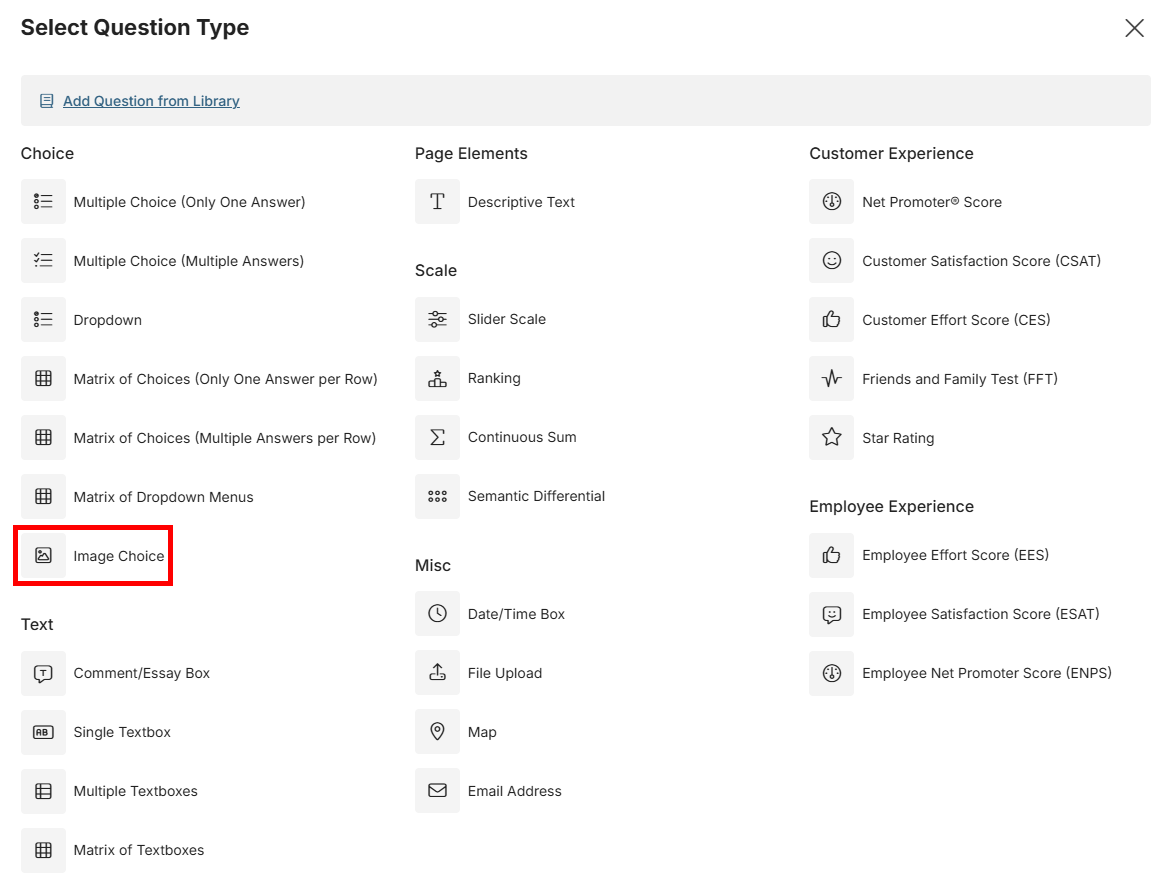
- Enter your question text in the Question box.
- For your answer choices, enter a caption for each option. The caption text can be shown to reespondents as extra information and is what will be used in reporting.
- For each option, add an image by clicking on the “blank image” box to the left of each caption box.
- When you click to add an image, you can drag an image into the add image pop-up, add an image from your Library, or search the web for stock images.
- Once selected or uploaded, click “Apply” to set it for that option.
- Optionally, you can add alt text to each option to improve accessibility.
- Below the list of answer choices are some options. The following are specific to this question type:
- Show captions below images: This is on by default. If this is set off, the respondents will only see the images.
- Allow respondents to select more than one answer: this changes the question from a single-select question to a multiple-select question.
Question Options
On the options tab, there are two further options:
Image size: Sets how large the option images appear to respondents
Image fit: Controls how each image fills its tile. Fill crops the image to fill the tile with no gaps; Fit shows the whole image and may leave space around it; Actual size shows smaller images at their original size without enlarging them.