
 Back
Journeys Overview
Journeys lets you map the stages and touchpoints a customer passes through, link a survey to each touchpoint, and see how every part of the journey is performing in one place — so weak touchpoints stand out.
Journey Mapping is available on the SmartCX Pro plan.
How a journey is structured
A journey has a name and an optional persona (the type of customer it describes). Stages are its broad phases, shown left to right; touchpoints sit inside stages and are the moments where a customer interacts with you.
Each touchpoint links to one survey, and within it to one or more NPS, CSAT or CES questions that produce its score, plus optionally an open-text question whose comments drive its sentiment. Only surveys containing one of those experience question types can be linked.
The three Journeys pages
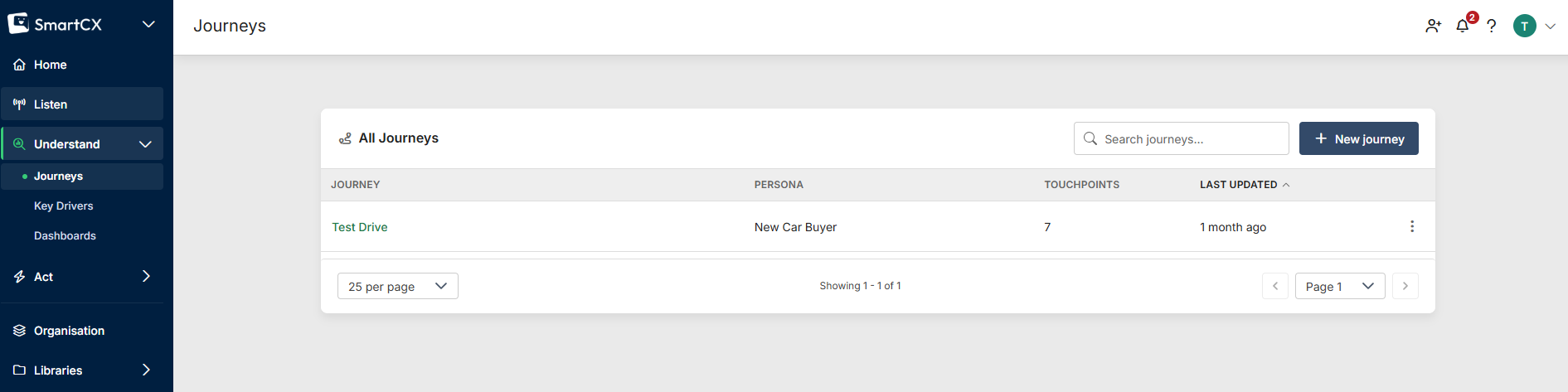
- All Journeys — click Journeys in the main navigation. Lists every journey you own or that has been shared with you (shared ones show a people icon). Create, rename, copy, share and delete journeys here.
- Journey overview — click a journey's name. A read-only map with each touchpoint's status, score and sentiment for a chosen period, plus a performance chart.
- Edit journey map — click Edit on the overview. Add and arrange stages and touchpoints and link feedback sources.
Touchpoint statuses
- Open — linked to a live survey collecting responses.
- Draft — linked to a survey not yet launched, so no score.
- Closed — linked to a closed survey; the score reflects its final responses.
- Source Removed — the linked questions have been deleted from the survey.
- No source — nothing linked yet.
Who can use Journeys
Anyone a journey is shared with can open and edit it; deleting it and managing sharing are limited to its owner. Changing a touchpoint's feedback source also needs results access to the linked survey.