
 Back
Monitoring Workflow Runs and Fixing Issues
Every response that enters a workflow creates a run. The run history shows what happened to each one, and the Issues page gathers every run across your account that has stopped and needs attention, so nothing fails silently.
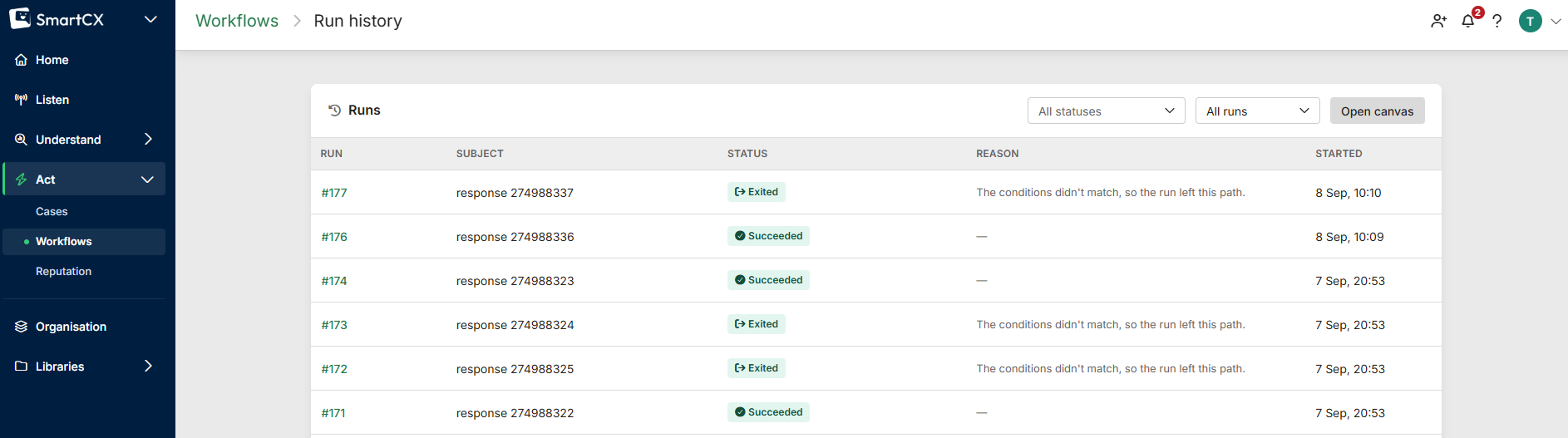
Run history
Open a workflow's run history from Run history in the canvas header, or from the actions menu (three dots) on the All workflows page. Each row shows the run number, its subject (the response), its status, the step it's at, a reason if it stopped, and when it started. Filter by status above the table. Click a run number for its details: the workflow Version it ran on, start and finish times, when a waiting run is Next due, and every step in order with its own status, attempts and reason. Where a step produced something, such as a case, there's a link to it.
Run statuses are:
- Pending / Running — about to start, or working through a step now.
- Waiting — paused in a Wait step.
- Enriching — waiting for Sentiment or AI Thematic Analysis before checking an Enrichment condition.
- Succeeded — reached the end of its path.
- Exited — left the path early, usually because a Conditions step didn't match.
- Parked — a step failed and the run has stopped for someone to look at. Parked runs appear on the Issues page.
- Failed / Canceled / Ignored — ended in failure, was stopped, or was a parked run someone dismissed.
If a step hits a temporary problem the workflow retries it automatically with increasing gaps; a step that still fails after its retries is parked with the reason "This run failed repeatedly and stopped retrying". Test runs from the Test button aren't recorded here.
The Issues page
Click Issues at the top of the All workflows page. The Parked runs table lists, for every workflow in your organization, the workflow (linked to its run history), the response, What went wrong in plain English, how many Tries the step has had and how long it's been Stuck since.
Fix the cause, then resolve the run
The reason usually points at something to change first:
- "None of this step's recipients resolved to a valid email address" — check the Email step's recipients.
- "The respondent has no email address to send a follow-up to" — the response has no email (for example an anonymous link); there's nothing to retry, so Ignore it.
- "The follow-up survey has no open link collector" — create or reopen a web link collector on that survey.
- "Your plan's case limit is used up" / "Your account's email balance is used up" — retry once cases or emails are available again.
- "The case priority … no longer exists" / "The member this step assigns cases to is no longer in your account" — choose a different priority or assignee in the Case step and publish.
- "This step pipes in a question or choice that's been deleted" — update the inserted data and publish.
Then use the row's actions:
- Retry — queues the run to try the failed step again straight away.
- Defer — puts the run to sleep until a date and time you choose, then retries. It keeps its attempt count, so it won't retry forever.
- Ignore — dismisses the run so it never runs again. This can't be undone; the run is marked Ignored with its reason kept.
A retried run continues on the version it started with, so a fix to the workflow itself applies only to new runs — fixes to your account (emails, cases, members) apply to retries too. If a colleague resolves the same run first, the page says so and refreshes. Anyone who can edit the workflow can resolve its runs; others see View only.